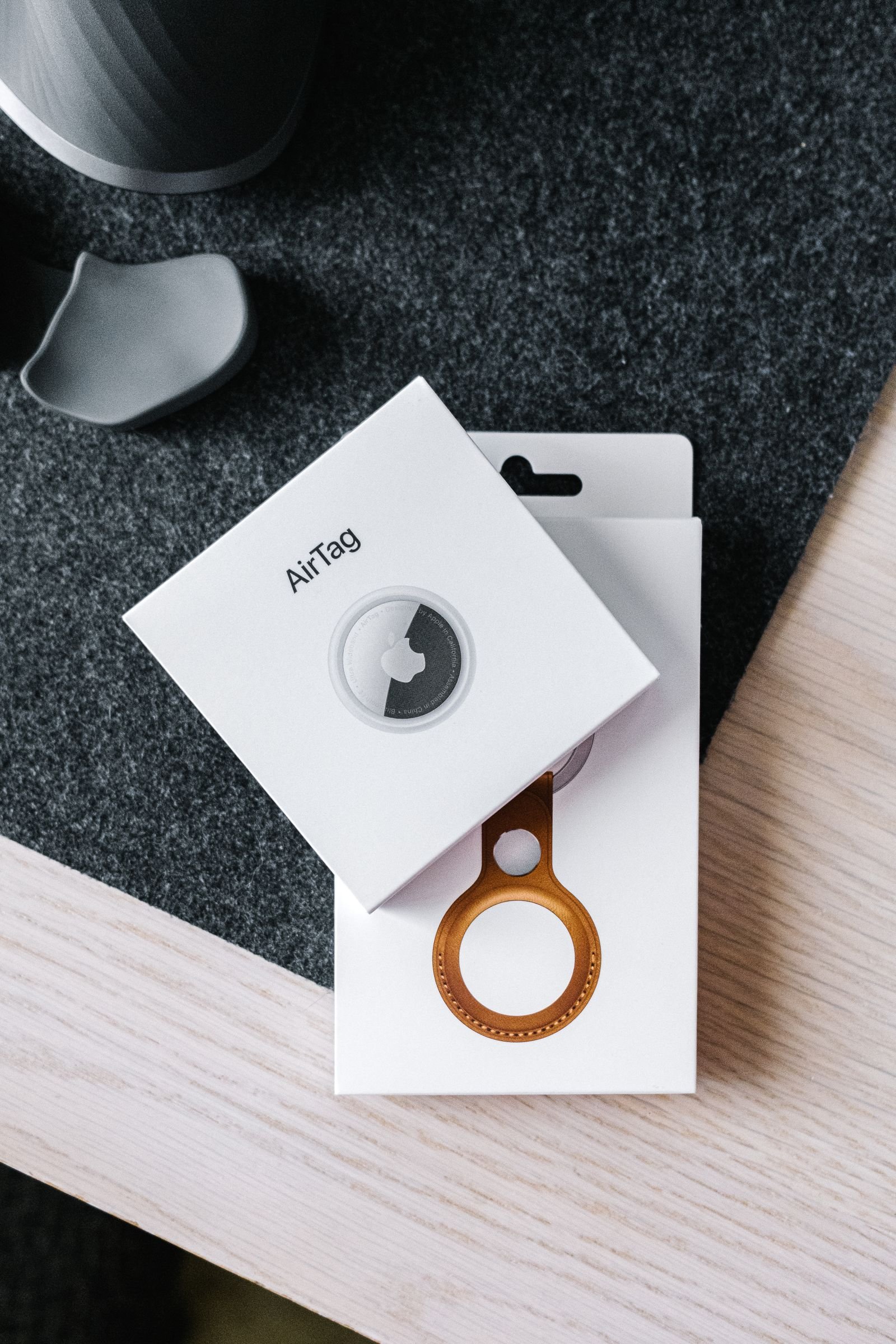
An AirTag can be passed on; the former owner’s Find My relationship with it cannot.
The awkward question often arrives at the handoff: can the recipient simply inherit the tag’s name, location trail, and alerts? No. An AirTag is linked to one Apple Account at a time, and that link is a privacy boundary rather than a transferable profile.
The former owner can remove the tag from Find My, allowing a recipient to pair it as their own; transferring an AirTag to a new owner is therefore a change of ownership, not a migration. Its old name, item category, notification settings, Precision Finding relationship, and any locations previously visible in Find My remain tied to the former account or disappear with the association. The recipient starts with a clean setup, while the former owner loses the ability to locate the tag once removal is complete.
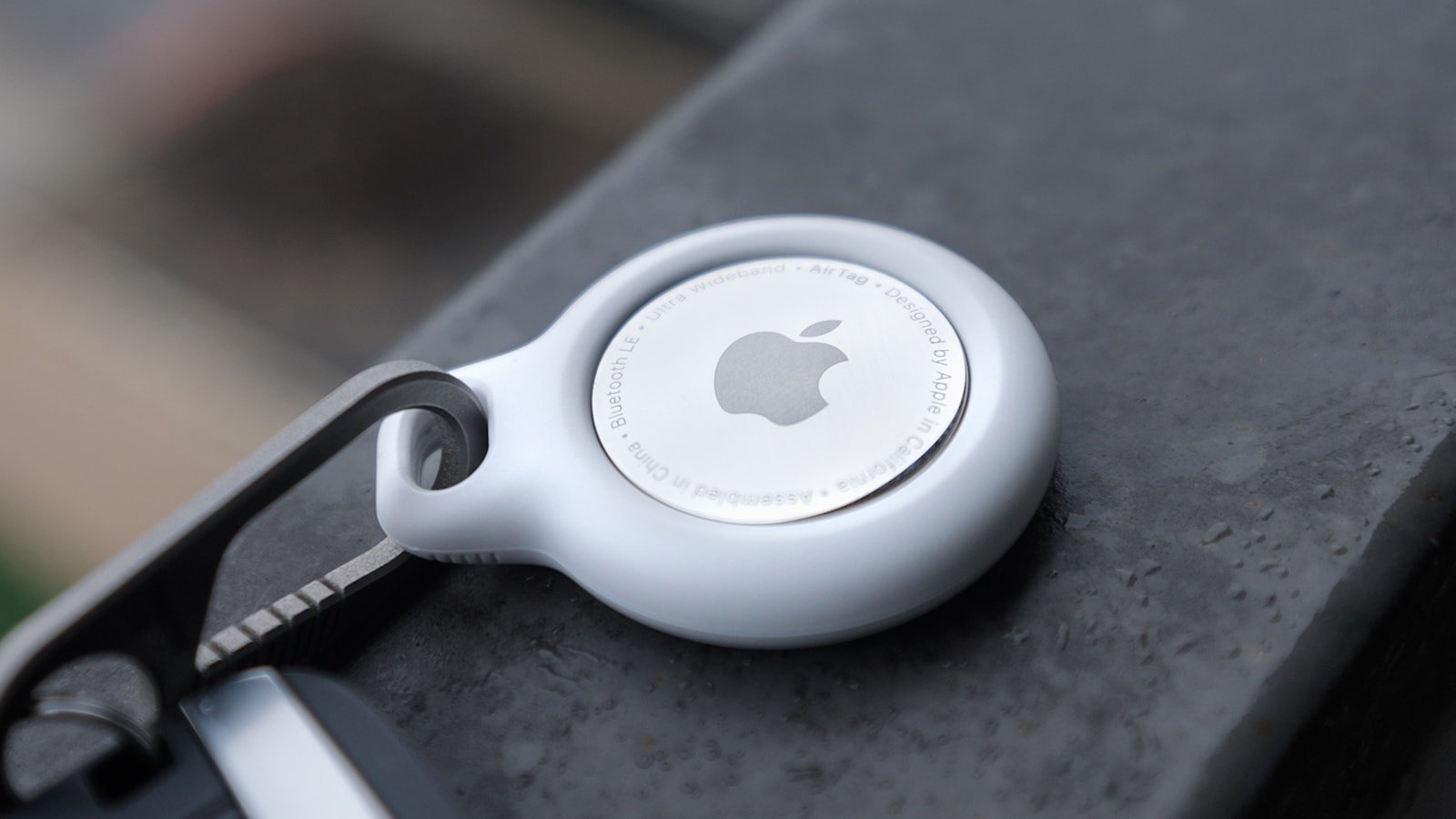
The AirTag moves; the account history does not
Removal ends its link to the former owner’s Find My account. The new owner registers it as a newly discovered accessory.
Locations, last-seen records, notification choices, and account associations are private account data—not a transferable AirTag archive.
An AirTag broadcasts an encrypted Bluetooth identifier; it is not a GPS recorder with an accessible location-history store.
Its location is reported through the Find My network to the enrolled account. After reset, it begins a separate relationship with the new account.
Personal labels, Lost Mode status, and notification settings do not carry into the new registration.
The new owner can assign a name and configure alerts after pairing, while the former owner’s settings remain unavailable.
Confirm control before removing it
Before a hand-off, the current owner needs three things.
Access to the Apple Account that owns the AirTag.
A device signed in to that account with the Find My app available.
Therefore, this is needed to transfer an airtag to a new owner.
Possession of it is needed immediately afterward to reset for the next pairing.
Activation Lock is tied to the Apple Account record, not merely to the tag’s Bluetooth connection.
Turning Bluetooth off, unpairing accessories, or handing over the AirTag leaves that record intact.
The recipient will see that the item is linked to another Apple Account and cannot finish setup.
Consequently, transfer an airtag to a new owner is restricted by Activation Lock.
Note that removing the battery does not release ownership.
Additionally, it can restart the AirTag’s hardware, but it cannot alter Apple’s Find My association.
Subsequently, the recipient can perform the physical reset and pair it to their own account.
When credentials are unavailable, recovery must happen before the transfer is completed.
A battery reset prepares the AirTag for new setup only after its prior owner has removed it from Find My. Physical access cannot bypass Activation Lock.
Save the details that matter outside Find My
-
Record the current name
Note the AirTag’s displayed name and any emoji, such as “Blue Suitcase” or “Milo’s Carrier.” The new owner will create a new Find My label after pairing.
-
Describe the item it protects
Write down the item, its usual use, and any distinguishing details. This is especially helpful when organizing an everyday-carry tech accessories checklist with several similar trackers.
-
Include accessory and placement details
Identify the holder, key ring, luggage loop, or adhesive mount, plus where it is fitted. A photo can preserve orientation or a hidden mounting location more clearly than a note.
-
Add practical handoff notes
Mention battery type, the last known battery-change date, and any quirks such as a loose holder or a sound that is muffled by the item.
-
Leave private Find My records behind
Location history, notifications, Precision Finding behavior, Lost Mode contact details, and separation alerts remain tied to the departing Apple Account. They cannot be exported to the new owner.
A short written handoff preserves real-world context without disclosing private location data.
Remove the AirTag from Find My
- Open the Items tab in Find My
On an iPhone or iPad signed in to the current owner’s Apple Account, open Find My and select Items. Tap the AirTag being transferred, then scroll to the bottom of its item card.
- Choose Remove Item
Tap Remove Item, then confirm the removal when prompted. Depending on the iOS or iPadOS release, the control may read Remove This Item or present a similarly worded confirmation sheet.
- Finish the on-screen confirmation
Enter Apple Account credentials if requested and wait for Find My to confirm that the item has been removed. This is the action that ends the AirTag’s association with the existing Apple Account and clears its Activation Lock.
- Do not mistake other actions for removal
Deleting a separation alert, turning off item notifications, removing the AirTag from Bluetooth settings, or simply taking out its battery does not transfer ownership. Those actions affect local alerts or connectivity, not the Find My account link.
- Treat removal as a privacy boundary
After removal, the former owner can no longer locate the AirTag, receive its separation notifications, or use its Lost Mode contact message. Earlier locations, notifications, and item settings remain within the former owner’s Find My records; they are not handed to the next owner.
The AirTag still needs a physical reset before it can be paired to another Apple Account.
Reset the AirTag with five battery connections
-
Open the battery cover
Press down on the stainless-steel cover and turn it counterclockwise. Lift off the cover, then remove the CR2032 battery.
-
Make the first connection
Insert the battery with the positive side facing up. Press it down until the AirTag plays a sound, then remove it again.
-
Repeat four more times
Reinsert, press until the sound plays, and remove the battery four additional times. Each sound confirms that the battery has made contact.
-
Listen for the changed fifth sound
On the fifth insertion, the sound differs from the first four. That final tone indicates the AirTag’s hardware reset is complete and it is ready for pairing.
-
Close it and begin fresh pairing
Fit the cover’s three tabs into their slots, press down, and turn clockwise. Hold the AirTag near the new owner’s unlocked Apple device to start setup.
This reset clears the AirTag’s local pairing state; it does not remove an Apple Account association by itself.
A missing sound usually means poor battery contact, reversed polarity, a depleted cell, or a CR2032 with a bitterant coating that interferes with the contacts. Check that the battery is clean and seated firmly.
If the fifth tone plays but setup still fails, the AirTag may remain linked to the previous owner’s Apple Account. It must be removed in Find My before another account can pair it. Nearby Bluetooth, an active internet connection, and current Find My access also help complete pairing.
Set up the AirTag under the recipient’s Apple Account
- Bring the reset AirTag close to the device
On an unlocked iPhone or iPad with Bluetooth enabled, the recipient holds the AirTag nearby. A setup card normally appears; if it does not, opening Find My, choosing Items, then Add Item can start the same pairing flow.
- Choose a name that matches the item
Apple’s suggested labels are only a starting point. A clear name and, where offered, an emoji make a crowded Items list easier to scan—especially when preparing trackers for travel or managing several similar bags.
- Finish registration to the recipient’s account
The on-screen confirmation associates the AirTag with the Apple Account currently signed in on that device. It creates a new Find My item record; the former owner’s locations, notifications, Lost Mode message, and history do not reappear.
- Rebuild only the preferences that remain useful
The recipient can review item-sharing, separation notifications, and Lost Mode contact details after pairing. These choices are configured anew, so they can reflect the item’s current use rather than inherit assumptions from its prior owner.
- Treat successful setup as the ownership check
If Find My completes pairing and shows the AirTag in Items, Activation Lock is no longer blocking this account. A message that the AirTag is linked to another Apple Account means the prior removal did not complete; repeating battery resets alone will not resolve that link.
Pairing requires an iPhone or iPad signed in to the recipient’s own Apple Account.
Fix the roadblocks before handing it over
Why does it say “AirTag is linked to another Apple Account”?
That message means Activation Lock is still attached to the former owner’s Apple Account. The former owner must remove the item in Find My; resetting the battery alone cannot release that link. Once removal has synced, the recipient can reset and pair it as a new item.
What if the former owner cannot access their Apple Account?
The AirTag cannot be legitimately transferred until its account association is removed. If the owner regains access, removal can be completed from Find My on another signed-in Apple device or through iCloud Find Devices. The recipient cannot bypass Activation Lock with the AirTag, its serial number, or repeated resets.
Why is there no pairing prompt or reset sound?
Keep the AirTag close to an unlocked, Bluetooth-enabled iPhone or iPad running a compatible current OS, then open Find My and retry after a reset. A missing sound can indicate an incomplete fifth battery connection, a weak or incorrectly seated CR2032 battery, or a speaker issue; the pairing prompt also will not appear while the device remains linked elsewhere.
What is a privacy-conscious handoff routine?
The former owner can remove the AirTag from Find My before exchanging it, then confirm it no longer appears in their Items list. The recipient can install a fresh battery if needed, perform the five-connection reset, and pair it while both parties avoid sharing Apple Account credentials, location screenshots, or old tracking records.
- A reset makes the AirTag discoverable; Find My removal releases ownership.
- A transferred AirTag begins with a new name, location history, alerts, and Lost Mode setup.
A blocked transfer nearly always traces back to an active Apple Account link, not to Bluetooth pairing. After removal and reset, the recipient receives a newly configured tracker, while the former owner retains their private Find My history.