
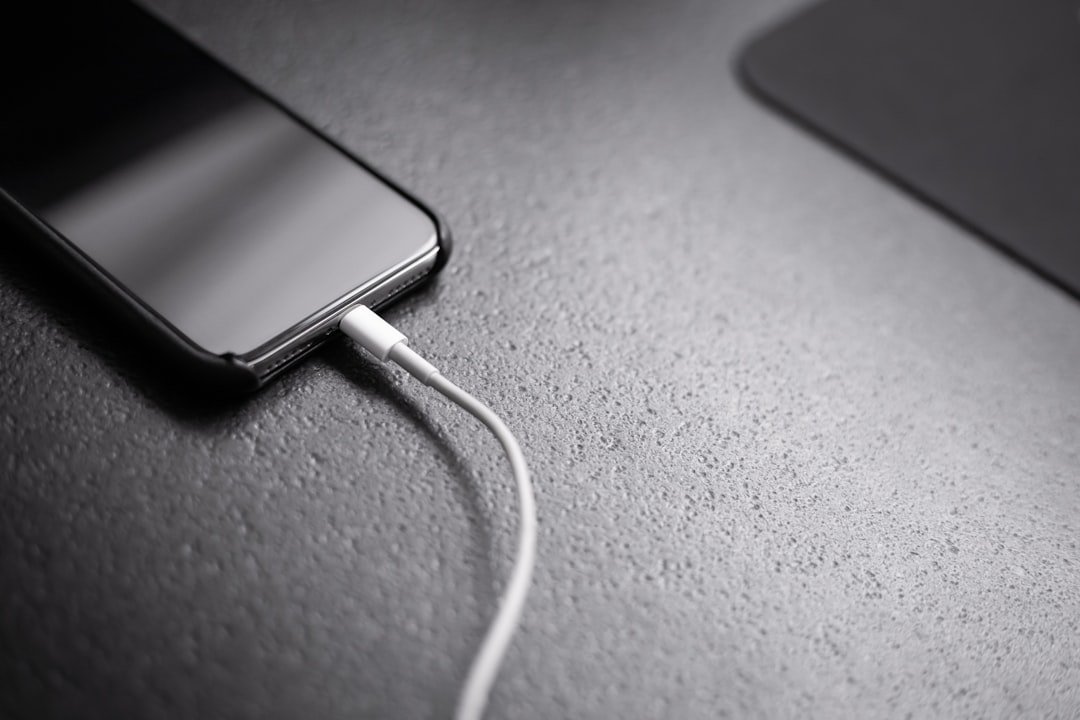
A lit battery symbol only proves that power is arriving—not that enough of it is arriving.
A phone can show the charging icon while its battery percentage barely moves during navigation, video calls, or a hotspot session. That is not necessarily a fault: the device may be drawing nearly as much power as the charger is supplying.
USB-C describes the plug, not the charging deal. A basic USB-C source may provide only 5 V at modest current, whereas USB Power Delivery (PD) requires the charger, cable, and device to negotiate a compatible voltage/current profile. If that negotiation falls back to 5 V—or is capped by the cable, a legacy port, heat protection, or the device’s own charge-management logic—the icon remains, but the expected fast-charge rate does not. A USB-C-to-USB-A cable and many older power banks are especially common fallback paths.
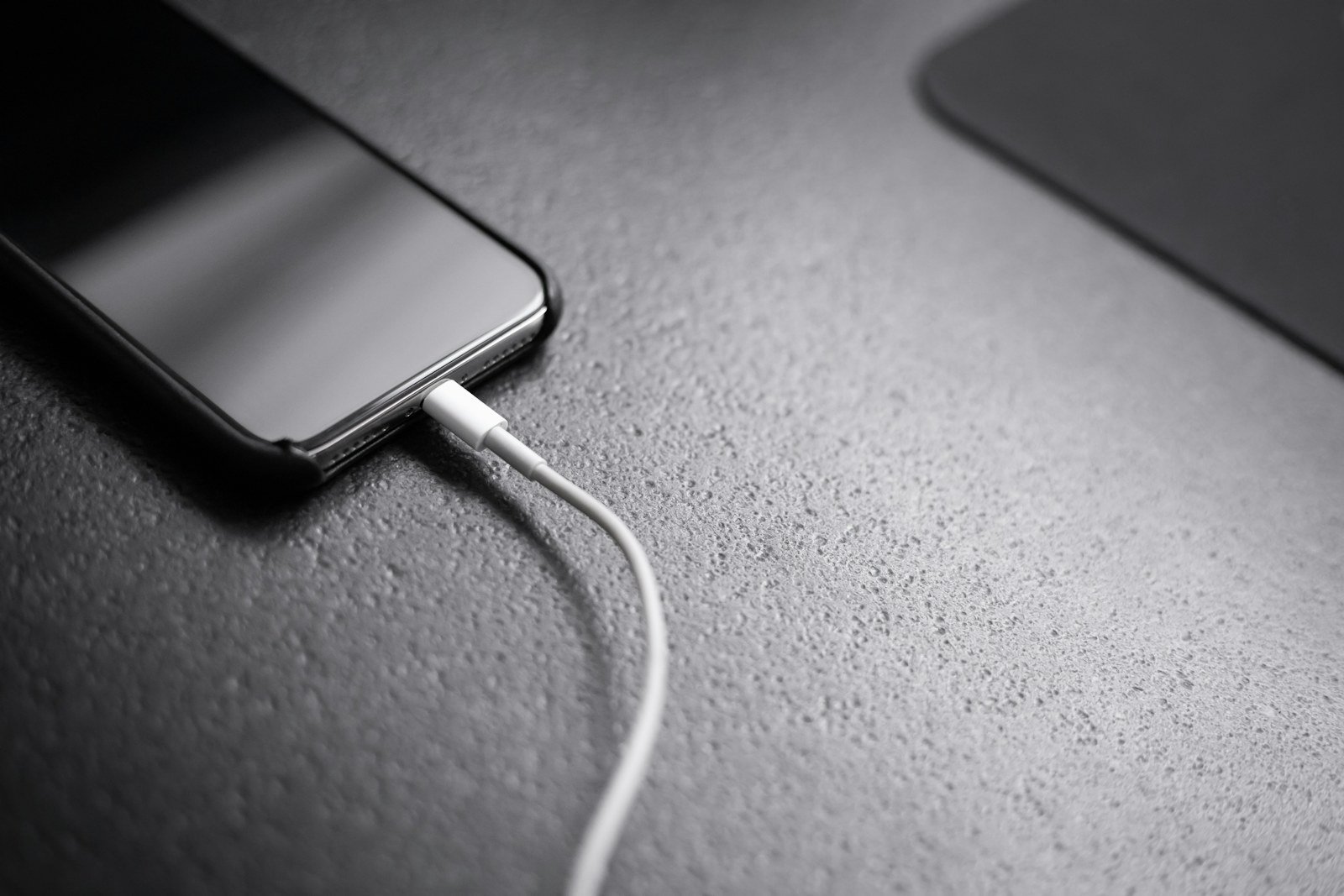
Test charging with the workload removed
-
Remove the usual power load
Place the device on a hard surface, lock or sleep it, close demanding apps, and disconnect docks or peripherals. Allow a few minutes for background activity to settle.
-
Record a starting baseline
Note battery percentage, charger state, and battery temperature if the operating system reports it. A warm battery may deliberately accept less charge.
-
Run a short controlled charge
Use the suspected charger and cable for about 10 minutes without waking or using the device. Keep the same outlet and charging port for comparison.
-
Check input power, not only the icon
A system battery diagnostic or USB-C inline power meter can show whether the device is actually drawing meaningful watts. Adapter output capability is not the same as power accepted by the device.
-
Repeat with a known-good PD path
Test a proven PD charger and cable under the identical idle conditions. A materially higher reading points toward the original charger, cable, port, or negotiated profile.
During gaming, video export, hotspot use, or heavy display brightness, the device can consume more power than the charger supplies. Low net battery gain under load can be normal; low accepted input power while idle is the more useful evidence of a PD charging problem.
Treat PD as a contract
USB-C Power Delivery is a negotiation, not a fixed output. After connection, the charger advertises Source Capabilities and the device requests a compatible power profile. A capable cable may also report its current rating through an e-marker. When that exchange fails, the connection often falls back to ordinary 5 V USB power: enough for a battery icon, rarely enough for fast charging.
Compare the request against the charger’s per-port output, not its headline wattage. Power specs that affect PD charging speed matter especially with multiport adapters, which may divide or limit output when another device is connected.
Isolate the failed link
Keep the same wall outlet and remove heavy workload. Test the device with a known-good PD charger and cable. Then leave the charger in place and change only the cable; finally, use that known-good cable to test the suspect charger with another PD device. Note the port used and whether other ports are loaded.
One changed item produces useful evidence. Changing charger, cable, and device together only shows that some combination works. A lower but stable profile may still be intentional: battery tapering, heat limits, or device policy can reduce the requested power even with healthy hardware.
- PD (Power Delivery)
A USB-C protocol for negotiating voltage, current, and power rather than assuming a fixed output.
- PDO
Power Data Object: one advertised fixed or programmable power option, such as 9 V at 3 A.
- PPS
Programmable Power Supply: a PD option that allows fine voltage adjustments within a stated range.
- E-marker
A chip in some USB-C cables that identifies capabilities, including higher-current or higher-power support.
- Source and sink
The source supplies power; the sink, usually the device, requests and consumes it.
Treat the cable as a power component
A USB-C cable is not merely a connector with wires. During PD negotiation, it helps determine whether the source may offer higher current. A cable with poor construction, damaged contacts, excessive resistance, or a missing/incorrect e-marker may still transfer files and connect peripherals while restricting charging to a lower power level—or becoming noticeably warm under load.
For a meaningful isolation test, use a known-good, certified USB-C-to-USB-C cable rated for the required current. Many cables support up to 3 A; higher-power operation commonly requires a correctly marked 5 A cable, alongside a charger and device that support that profile. Cable length also matters: a long, thin cable can lose enough voltage at high current for the device to reduce input power.
Avoid treating “100 W” or “240 W” printing as proof. Check for USB-IF certification where possible, inspect both plugs for looseness or discoloration, and test the suspect cable against the same charger, port, and device. If charging speed changes, the cable is evidence—not an afterthought.
Magnetic adapters and detachable-tip leads add contact resistance and can omit essential PD signaling. They deserve particular caution when diagnosing charging problems linked to magnetic cables, especially at high power.
USB-A-to-USB-C leads cannot provide normal USB-C PD charging. Their presence can make a capable PD charger appear faulty.
Read the port, not the headline
A charger marked 100 W may only provide that figure from one USB-C port, with the others empty. Read the output table printed on its case or manual: each port has its own voltage/current profiles, often such as C1: 5V⎓3A, 9V⎓3A, 15V⎓3A, 20V⎓5A. The active port must offer a profile the device can accept.
Multi-port models also list combinations such as C1+C2: 65W+30W or a shared 45 W group. Connecting a second device can trigger a new allocation, briefly interrupting charge while PD renegotiates, then leaving the primary device below its preferred input. Some designs give C1 priority; others cap every port once a neighboring port is occupied.
For the broader causes behind this behavior, see how PD chargers can fail to deliver fast charging. The table—not the largest wattage printed on the charger—identifies the usable ceiling.
-
Empty every other port
Disconnect phones, watches, hubs, and USB-A accessories; even a small load may activate a shared-power rule.
-
Use the documented high-power port
Move the same known-good cable to C1 or the port assigned the highest single-port output.
-
Compare the single-port result
If fast charging returns with other ports vacant, power sharing or port priority—not necessarily a fault—is limiting it.
-
Add devices one at a time
Note which connection causes the rate to fall, then consult the charger’s combination-output row.
A USB power meter can confirm the negotiated voltage and current, but its own rating must suit the expected PD power.
When the device is the limit
A 100 W or 140 W adapter may be working perfectly while a phone accepts only 18–27 W, a tablet settles near 30–45 W, or a laptop caps itself well below the adapter’s rating. The device’s USB-C power controller selects the voltage and current it considers valid; the adapter only offers options.
Some fast-charge claims also refer to proprietary modes rather than ordinary USB PD. A handset may reach its headline rate only with its maker’s charger, cable, and protocol. With a standards-compliant PD supply, it can still charge safely but at a lower, expected rate.
Charging rate also changes with conditions:
- Battery charge level: tapering near full is normal.
- Battery temperature or device heat: protection logic reduces input power.
- Battery-health, overnight, or “optimized” charging settings: firmware may deliberately pause or limit charging.
- Laptop power mode and firmware: a BIOS/EC update can alter USB-C charging behavior or compatibility.
PPS can enable finer voltage steps and higher rates on devices designed for it, but it is not a universal speed switch. If the device lacks PPS support—or requires a proprietary layer on top of it—a PPS adapter alone will not unlock the advertised maximum.
Know when slow is normal—and when to stop
A falling charge rate near full is usually deliberate. Lithium-ion devices commonly taper current after roughly 70–80%, then reduce it further as the battery approaches its target voltage. An on-screen estimate such as “slow charger” can therefore be misleading if it appears only late in the cycle.
Heat can also lower accepted PD power without indicating a failed charger. A warm device after gaming, navigation, direct sun, or a thick insulating case may derate, then recover after cooling. Thermal limits and charging performance are especially relevant when fast charging works briefly before settling at a lower wattage.
Unsafe behavior looks different: heat concentrated at the plug or cable end, a connector that disconnects when untouched, crackling, a sharp chemical or burning smell, discoloration, or a cable jacket that is split, loose, or swollen. Charging should stop if any of these appear. Disconnect by the plug rather than pulling the cable, allow the equipment to cool on a nonflammable surface, and do not resume testing with the suspect accessory.
If the device enclosure lifts, separates, or bulges, stop charging and stop using it. Do not press the case closed or attempt to puncture the battery; arrange assessment through an appropriate repair or recycling channel.
Remove the middleman
A dock, monitor, hub, power bank, extension, or magnetic adapter adds another USB-C negotiation point. Before diagnosing the laptop or charger, connect the known-good charger and cable directly to the device, with peripherals disconnected. If normal charging returns, the intervening accessory—not necessarily the computer—is the limiting link.
Why pass-through changes the result
A pass-through accessory first consumes power for its own controller, Ethernet, display circuitry, storage, and attached devices. It then advertises the remaining input capability upstream. A “100 W pass-through” label may describe its input ceiling, while its host output is lower after reserved overhead; some designs also require more than 100 W input to deliver their stated maximum to the host.
Role negotiation matters too. USB-C devices choose source, sink, and sometimes dual-role behavior during connection. A power bank may prioritize charging itself, a monitor may offer only a modest downstream PD profile, and a hub can renegotiate when a display or drive wakes.
Also check the device markings and manual: many laptops have several USB-C-shaped ports, but only specific ports accept charging. Thunderbolt, DisplayPort, or data symbols alone do not guarantee power input. Test each manufacturer-designated charging port directly before treating a port as faulty.
- Connect charger straight to the device
Use the same charger and cable that showed the problem, but remove every adapter and accessory.
- Compare the charging behavior
A restored higher rate points to pass-through overhead, a lower advertised profile, or accessory renegotiation.
- Verify the marked input port
Use only ports identified by the manufacturer as capable of USB-C power input.
Test in an Order That Preserves the Evidence
Let the device rest, connect it directly, substitute a known-good rated cable, then isolate the charger port or charger. If the result remains unchanged, the likely limits are the device’s input ceiling, battery state, software behavior, or temperature.
A practical carry kit can stay small: a reputable PD charger with a clear single-port rating, a short certified USB-C cable matched to the expected power range, and a second cable or compact power meter. This order avoids random swaps that hide the actual fault.
USB-C Fast Charging: Common Questions
Why does my phone show the charging icon but barely gain battery?
During gaming, video export, navigation, or hotspot use, the device can consume power nearly as fast as the charger supplies it. Low net battery gain under heavy load can be normal. The more reliable evidence of an actual charging fault is low accepted input power while the device is idle, not the percentage while it’s in active use.
Can a USB-A to USB-C cable cause slow charging?
Yes. USB-A-to-USB-C leads cannot provide normal USB-C Power Delivery charging, so the connection falls back to basic 5V power. That can make an otherwise capable PD charger appear faulty when the cable is actually the limiting part.
Why does charging slow down as the battery gets full?
This is usually deliberate, not a fault. Lithium-ion devices commonly taper charging current after roughly 70–80% and reduce it further as the battery nears its target voltage, so an on-screen “slow charger” estimate can be misleading if it only appears late in the charge cycle.
Does a higher-wattage charger always charge my device faster?
No. A 100W or 140W adapter may be working perfectly while a phone only accepts 18–27W, a tablet settles near 30–45W, or a laptop caps itself below the adapter’s rating. The device’s own USB-C power controller selects the voltage and current it considers valid; the adapter only offers the available options.


14 Comments
PPS is the part that still makes this feel unnecessarily magical. My charger advertises 45W, my phone advertises 45W, and I get around 25W unless I use the manufacturer cable/charger combo.
I tried your substitution order: known-good cable first, then charger, then direct connection. It seems the phone accepts ordinary PD but only enables its top speed with PPS under certain battery temperature conditions. Not a defect, just marketing doing marketing things.
That conclusion is likely right. The headline wattage can depend on a specific PPS range, cable current rating, battery level, and thermal state; some devices also reserve their highest mode for their own ecosystem charger. Testing from a lower battery percentage while the phone is cool is the fairest comparison, but a stable 25W PD charge may be the expected fallback.
Yep, my phone behaves like that too. It will show the fancy fast-charge label for a few minutes when cool, then quietly drop down. I stopped chasing the peak number and just use the slower setup overnight.
This explained why my phone said “charging” while it was still losing 2% an hour on a video call. With the screen off and no apps running it climbed normally, so the charger wasn’t actually the villain. Slightly annoying answer, but at least I stopped buying random bricks.
The cable point is so real. I had a USB-C cable that moved files to my laptop perfectly, so I assumed it was fine. Swapped it for the short 100W-rated cable from my monitor and my tablet immediately started negotiating the faster mode.
That is a classic example. USB-C data capability and the cable’s current/e-marker capability are separate things, so a cable can be excellent for data yet still limit the available charging contract. Keeping one known-good, properly rated cable as a test cable saves a lot of guesswork.
Same here. Mine was a cute braided cable from a conference swag bag—apparently its main rating was “looks nice.”
The late-charge taper section would have saved me some unnecessary panic last winter. I was watching the wattage fall near 85% and thought my new charger had died. Turns out the phone was warm from being in the car and was almost full anyway.
Good checklist, although “certified cable” is harder to act on than it sounds. Marketplace listings toss around 100W/240W claims like confetti. I now buy from a known brand and test the cable with my own devices rather than trusting the product title.
One thing I wish more charger reviews made obvious is the shared-port behavior. My 100W desk charger only gives my laptop the full rate when it is alone; adding a phone to the side port knocks the laptop down enough that it barely gains charge during a build.
Nothing was broken, just a very misleading giant “100W” printed on the front. Reading the tiny port allocation chart finally solved it.
My Steam Deck was charging slowly through a USB-C hub, but directly into the charger it went back to normal. The hub had a PD-in port, so I assumed that meant all of its downstream ports got the same deal. Nope 🙃
Exactly—the hub may reserve power for itself, negotiate a different role, or have a lower downstream charging limit than its input rating suggests. Direct charging is the useful baseline. Once that works, reconnect the hub with only its power adapter attached, then add displays and peripherals one at a time to see where the reduction starts.
I ran into this with a dock and an external SSD. The dock was fine on paper, but once the SSD and HDMI were connected, the handheld got noticeably less power. Direct cable is boring but dependable.
Useful, but I’d emphasize heat even more. My old cable made the plug at the phone noticeably hot, not just warm, and it occasionally disconnected if the cable moved. I retired it immediately after reading similar advice; no charge speed is worth gambling with a damaged connector.