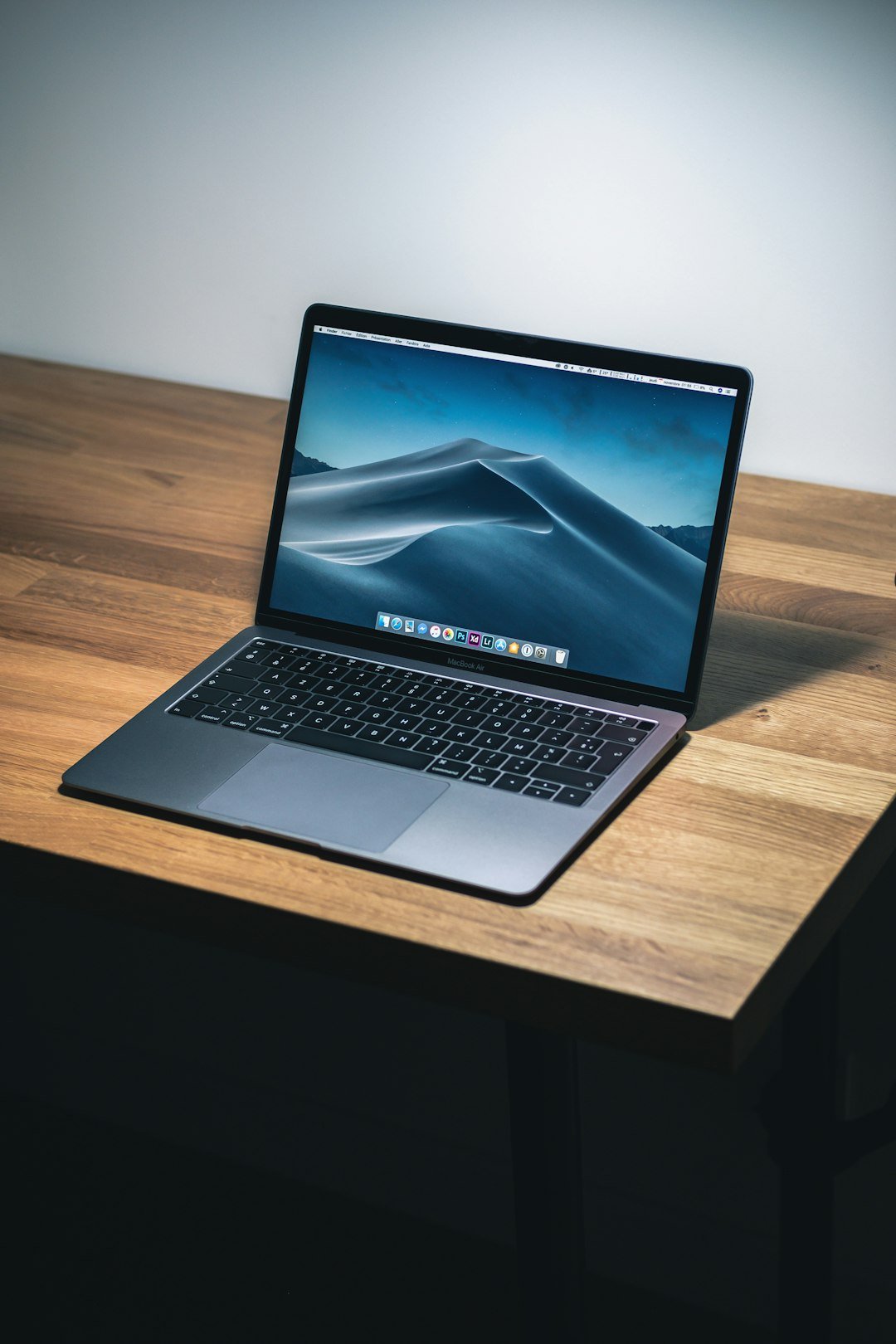
A checkpoint moves faster when the laptop has one permanent, reachable home.
At the belt, the buried work laptop becomes a small disaster: chargers spill out, documents shift, and a protective sleeve is wrestled free while the line waits. The delay began when the bag was packed, not when the bins appeared.
Give the computer a dedicated, top-accessible sleeve—ideally against the back panel, where it is cushioned and easy to locate by touch. Keep its path clear: place bulky power bricks, headphones, and spare clothing in separate zones rather than on top of it. That arrangement also supports sensible choices about what belongs in a commuting bag, since frequently handled items need equally deliberate positions. A repeatable layout means the laptop can come out, travel through screening, and return to the same slot without an anxious repack at the end of the conveyor.
Expect different rules in different lanes
A laptop does not always follow the same screening routine.
In a conventional X-ray lane, TSA requires travelers to remove laptops and place them in a separate bin.
That clear view helps the operator distinguish the computer’s dense components from other items.
Why the answer can change
Computed tomography (CT) scanners produce a three-dimensional image, so some airports allow electronics to remain in the bag during screening. Lane-specific signs and officer instructions still control: a CT-equipped lane may have different procedures for laptops, cables, and larger electronics than the adjacent lane.
Trusted-traveler access can also alter the process. TSA PreCheck generally permits laptops to stay packed, but it does not override an officer’s direction or every local procedure. Screening changes can occur during equipment outages, crowd management, or enhanced checks.
Before travel, check current TSA guidance and the departure airport’s security information. Pack so the laptop can be removed in seconds anyway; that preparation avoids repacking delays if the assigned lane uses the stricter rule.
Build around the laptop compartment
A bag’s laptop compartment should set the packing order, not be treated as leftover space.
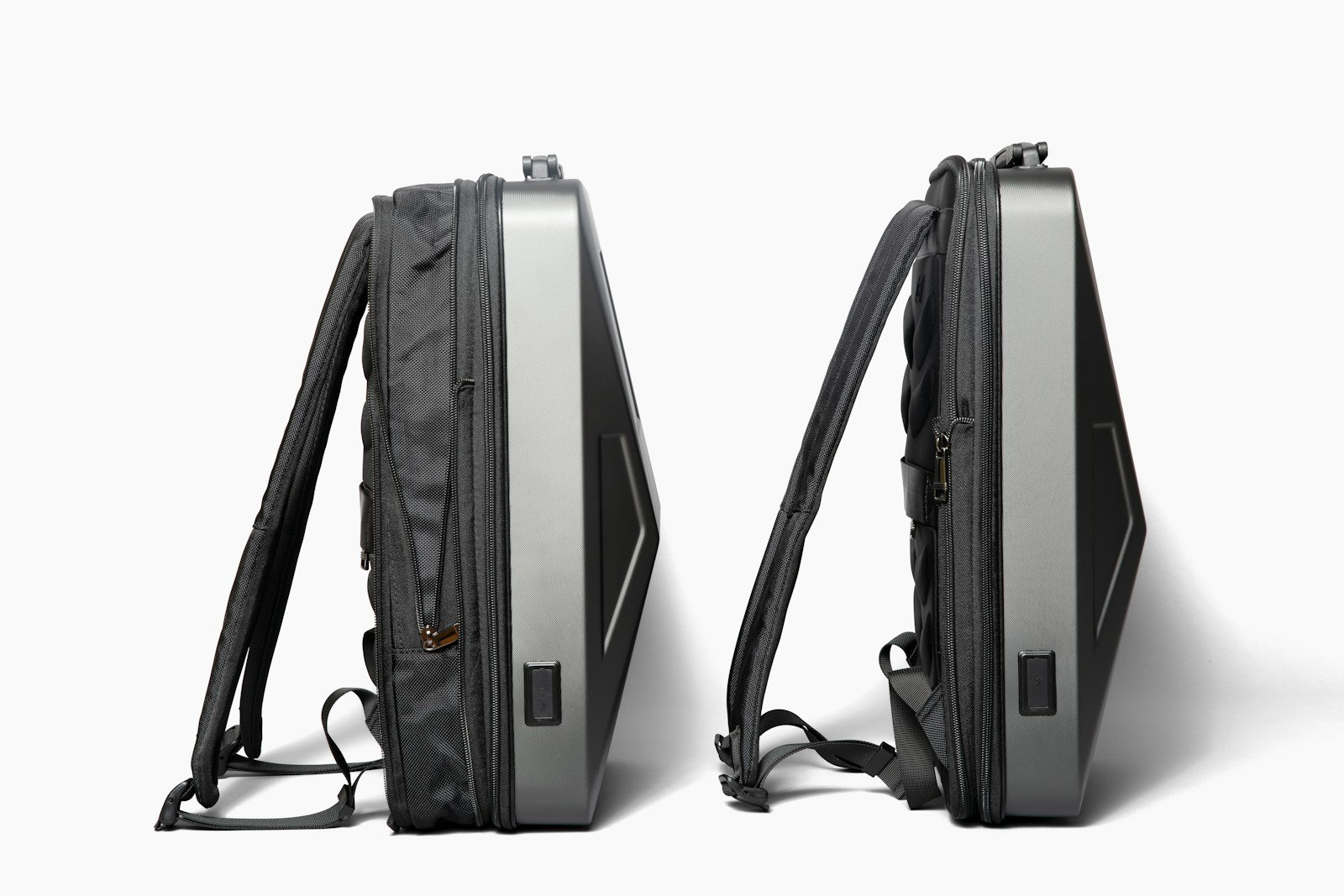
It works best when it sits against the back panel or opens independently from the main cavity, which speeds up laptop removal during screening.
Look for four practical features:
- Independent access: a separate zipper path keeps the laptop reachable even when the main compartment is full.
- Structured padding: foam or suspended-edge protection reduces pressure from items packed around the bag and helps the device slide out cleanly.
- A full-length opening: a zipper that runs nearly the height of the compartment avoids catching a laptop on a narrow, curved opening.
- A flat, bin-ready profile: the sleeve should lie flat without bulky pockets, loose straps, or a heavily overstuffed front panel.
The compartment itself needs to stay clear. A charger, mouse, documents, or power bank placed in the same sleeve can turn a simple pull into a search and may make the bag awkward to lay flat. Small accessories belong in an adjacent organizer pocket; bulky items belong in the main compartment.
Before leaving, opening the sleeve while the bag is fully packed is a useful test. If the laptop cannot be removed and returned in one motion, clothing or other contents are pressing into its path. Repack those items lower or farther from the zipper rather than forcing the device through a tight opening.
Pack outward from the laptop
Start with the laptop compartment empty except for the computer. Slide the laptop in first, with its broad faces uncovered and the zipper pull parked at the opening edge. This creates a direct route from zipper to bin and presents a simple, readable rectangle if the device remains in the bag for a CT-equipped lane.
Separate the dense items
Place the charger, power bank, mouse, adapters, and spare cables in a small pouch outside the laptop sleeve—ideally in a top pocket or the main compartment beside it. A charger brick tangled with cables and a battery pack can appear as one dense, irregular mass on an X-ray image, making a bag check more likely. Keep battery packs accessible, since an officer may ask to inspect them separately.
Load soft, low-density items around rather than on top of the device. A notebook or one thin folder is usually easier to interpret than a stack of papers, hard drives, chargers, and toiletries layered over the laptop. A folded commuter rain jacket can cushion the main compartment, but it belongs away from the sleeve zipper—not draped across its exit path.
Before closing the bag, test the sequence: laptop out first, accessory pouch second, travel documents last. If removal requires shifting more than one item, redistribute the load. The goal is not merely faster access; it is a bag whose X-ray image separates electronics, cables, and everyday contents into recognizable zones.
Keep small electronics in one pouch
A compact tech pouch gives chargers, power banks, cables, adapters, external drives, mice, and earbuds a home outside the laptop compartment. The point is not merely tidiness: loose cables can snag on a laptop edge, while a charger or drive pressed against the sleeve can turn a simple removal into a two-handed excavation.
Choose a pouch that opens wide and stays shallow enough to inspect at a glance. Coil each cable with a reusable tie, cap exposed connectors where practical, and place heavier charging bricks toward the pouch’s base. This keeps the pouch balanced and reduces the chance that a cable spills into the bag when it is opened at the belt.
Place it where it can be reached independently
The pouch can sit in a top pocket, front organizer, or directly beside the laptop sleeve—provided it does not block the sleeve zipper or exit path. It should lift out in one motion without moving clothing, documents, or the computer.
Separate presentation is useful when a screening officer asks for an item that can resemble a dense cluster on the X-ray image, such as an external battery, hard drive, or unusually large charger. Rather than searching through the main bag, the traveler can present the entire pouch or retrieve the requested item quickly. In lanes where the pouch may remain packed, it still keeps the laptop area clear for a fast repack.
Airline and checkpoint procedures can vary, but portable battery packs are commonly expected to travel in carry-on baggage. Storing them in the tech pouch makes them easy to locate if screening staff ask about one.
Keep the Laptop Pocket Empty of Everything Else
Reserve it for the computer alone, plus any permanently attached accessory that does not obstruct removal.
A cable, passport, or snack trapped behind the device turns a simple lift into a checkpoint repack.
Keep the liquids bag in an outer pocket or top pouch; a TSA-friendly toiletry kit should come out independently.
Leak-prone items and electronics are a poor pairing, and separate access accommodates lanes that request them.
Use one shallow personal-items pouch for keys and phone, and a distinct exterior pocket for food.
Metal clusters and dense food can invite a closer look; neither should delay laptop removal.
Place passport, boarding pass, and itinerary in a slim front organizer that closes securely.
Documents are needed before and after screening, often while the laptop remains in the bag.
Judge the Bag by Its Checkpoint Behavior
- A compartment that opens on command
Ignore “TSA-friendly” branding unless the laptop section unzips independently, opens wide enough to lie flat, and does not expose the rest of the load. A clamshell panel is useful only when its contents stay contained as it opens.
Look forA full-length, independent zipper path with a clear pull direction.AvoidA sleeve buried behind organizers, straps, or a main-compartment zipper. - Protection that does not obstruct
Padding should cover the base and edges without creating a tight, snag-prone channel. The laptop should slide out one-handed and return without compressing cables or forcing the zipper.
Look forA suspended sleeve with firm edge padding and a smooth lining.AvoidBulky padding that narrows the opening or catches laptop corners. - Zippers and structure that stay predictable
Checkpoint speed depends on pulls that are easy to find, tracks that do not bind under load, and a bag that holds its shape on the belt. Test access with the bag packed, not empty.
Look forLarge pulls, smooth two-way zippers, and a stable base.AvoidOverstuffed panels, floppy walls, or zipper tracks distorted by gear. - Choose the format around the route
A lightweight ergonomic commuter backpack carries hands-free and often protects electronics well, but shoulder straps and deep bodies can slow bin placement. Briefcases usually offer the quickest laptop presentation; totes provide broad openings but less structure, so they need a secure, separate sleeve.
Look forA format whose loaded shape remains balanced and easy to set flat.AvoidA stylish carryall that collapses or spills when opened.
Run a quick pre-line check
Before joining the queue, turn the bag so the laptop zipper faces upward and outward. Confirm it by touch rather than opening several compartments at the table. Remove outerwear, empty pockets of loose items, and place phone, wallet, keys, and boarding documents in their assigned locations; a commuter morning kit checklist can make that placement habitual.
Check three things while walking toward the divestment area:
- the laptop sleeve opens with one hand;
- no strap, jacket, or pouch crosses its zipper path;
- the posted lane instructions match the planned sequence.
Posted signs take priority: some lanes require the laptop in a separate bin, while others do not. Once screening is complete, collect the bag and bins, then step away from the exit table before reconnecting chargers, replacing pockets items, or putting on a jacket. That small pause protects loose accessories from being left behind and keeps the collection area clear for the next traveler.
TSA Laptop Screening: Common Questions
Do I always need to take my laptop out of my bag at TSA?
In a conventional X-ray lane, yes — TSA requires travelers to remove laptops and place them in a separate bin. Some CT-equipped lanes allow electronics to stay in the bag, but posted lane signs and officer instructions always take priority.
Does TSA PreCheck let me keep my laptop packed?
TSA PreCheck generally permits laptops to stay in the bag, but it does not override an officer’s direction or every local procedure. Screening changes can still happen during equipment outages or enhanced checks.
Where should chargers and cables go relative to the laptop?
Keep them in a separate tech pouch outside the laptop sleeve. A charger, power bank, and tangled cables pressed against the laptop can appear as one dense, irregular mass on the X-ray image and make a bag check more likely.
Can liquids ride in the same pocket as the laptop?
No. Keep the liquids bag in a separate outer pocket or top pouch so it can come out independently — leak-prone items and electronics are a poor pairing in the same compartment.
- A fixed laptop location turns an airport-specific instruction into one quick motion rather than a search through the bag.
- The bag design matters less once this packing pattern becomes automatic: preserve the exit path and read the posted lane guidance.
The durable habit is simple: the laptop returns to the same dedicated, immediately reachable compartment after every trip. A consistent location makes the motion automatic—open, remove if instructed, place in the bin, then return it to the same pocket after screening—without disturbing cables, documents, or clothing.
That routine is not a substitute for the lane’s directions. CT-equipped lanes, standard X-ray lanes, and expedited programs may handle electronics differently, and procedures can change at the same airport. Read the signs and follow officer instructions first; the fixed placement simply makes either outcome quick.