

Forgotten gear is usually a system failure, not a memory failure.
A charger gets used beside the sofa, a headset stays on an office desk, and an adapter disappears into a café pouch. By the next commute, each item is perfectly useful—just in the wrong place. Hybrid work creates a circulating inventory across home, workplace, transit, and occasional desks, while end-of-day routines rarely pull that inventory back together.
The practical target is not a miniature version of a permanent workstation. It is a lean, dependable bag that handles a sudden switch from home to office—or an unexpected afternoon elsewhere—without panic-buying cables or hauling duplicate peripherals. That means protecting the few items with high interruption cost: power, access, connectivity, audio, and the files or devices required to do the work.
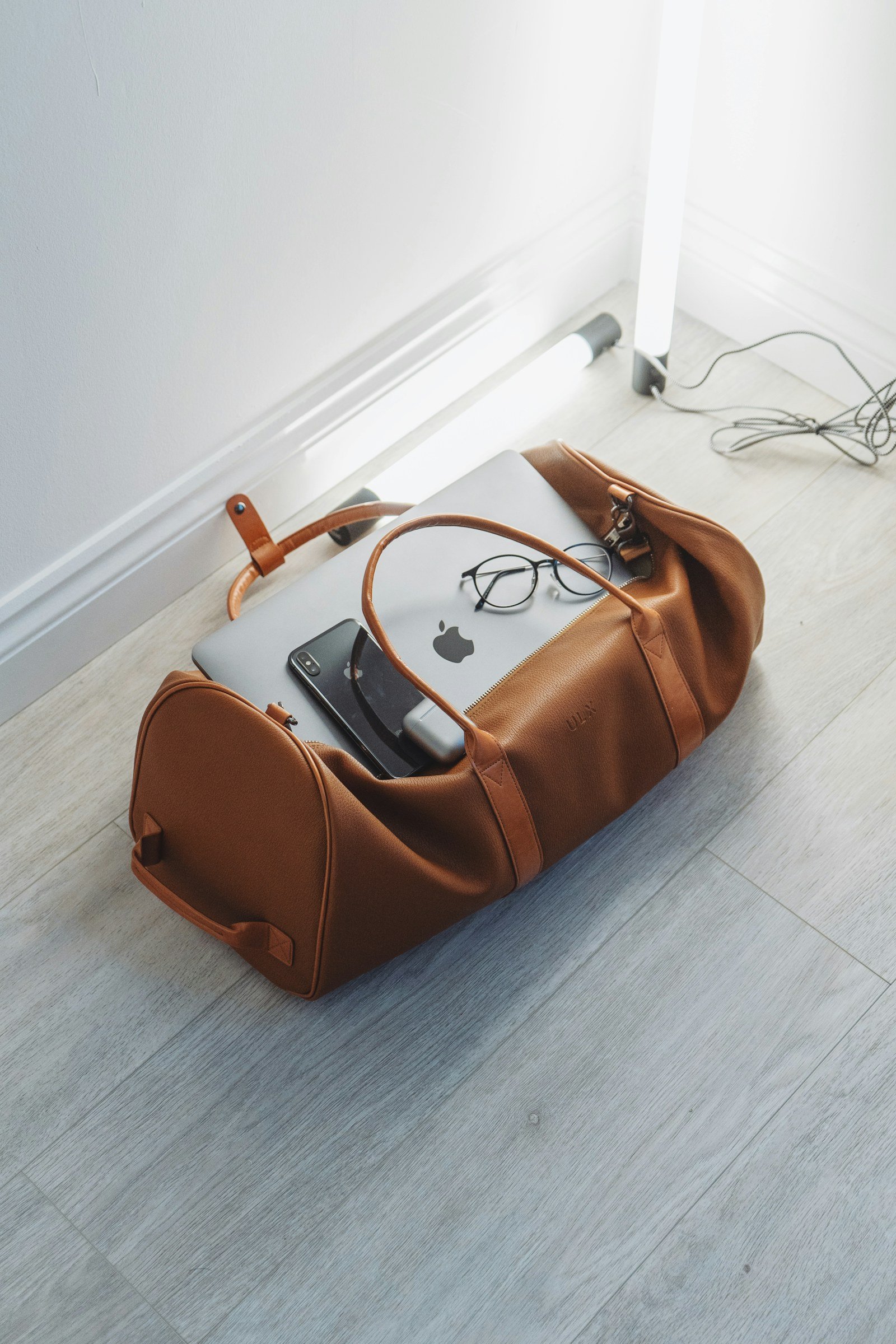
Map the day before packing the bag
A hybrid bag becomes overloaded when it is packed for every possible day rather than the day ahead. Start by tracing the real sequence: commute mode, first workspace, meeting locations, power access, weather exposure, and the point at which the bag must be carried rather than parked. A train commute followed by hot-desking has different failure points from a drive to an office with assigned storage.
Separate that map into non-negotiables and calendar-dependent needs. Non-negotiables are items whose absence stops work or creates disproportionate friction: work phone, access credential, primary charger, keys, wallet, and any device required to do the core job. Calendar-dependent items earn a place only when the schedule calls for them—presentation adapter for a client room, headphones for focused work, gym kit after office hours, or a larger power bank for a long travel day.
This distinction prevents the common “just in case” spiral. It also makes it easier to refine a complete work carry essentials approach around actual constraints instead of a generic packing list. An item that has not been used across several comparable days can move out of the daily bag and into a home or office reserve.
Use a three-tier inventory
Tier 1: always in the bag. These are low-bulk, high-consequence items that rarely leave: cardholder, keys, badge, short charging cable, compact wall charger, and a pen. Keep them in fixed pockets so a quick visual check reveals an absence.
Tier 2: load for the calendar. Add work tools after reviewing tomorrow’s agenda: laptop, notebook, mouse, meeting adapter, headset, or lunch container. Staging these beside the bag the night before reduces last-minute substitution.
Tier 3: stored reserves. Keep duplicates and occasional gear at the base location: spare cables, full-size chargers, webcam, stationery, and event-specific accessories. Reserves protect continuity without turning the commute into an equipment move.
Set up the daily packing system
-
List the day’s transitions
Note each workplace, transport leg, meeting type, and likely power source.
-
Mark work-stopping items
Place small, high-consequence essentials in Tier 1 and assign each a dedicated pocket.
-
Read the next calendar
Select Tier 2 tools only for scheduled tasks, travel, or known workspace gaps.
-
Keep backups out of the commute
Store Tier 3 items at home, the office, or another dependable base location.
-
Run a departure scan
Check the fixed pockets, then compare the calendar-dependent load against the day’s agenda.
Review the tiers after a change in commute, role, or regular workspace.
Give every essential a home
A bag becomes easier to audit when its layout stays the same from day to day. Assign four non-negotiable zones: a padded sleeve for the primary device, a shallow quick-access pocket for access items, a cable pouch, and a sealed compartment for liquids. The goal is not neatness; it is making an empty space immediately meaningful.
Keep high-frequency items near the opening: badge, keys, transit pass, earbuds, and phone battery. A bright pouch or contrasting cable tie gives small dark items a visual signature, while a textured pouch makes the cable kit recognizable by touch. A charger left behind is more conspicuous when its pouch has a dedicated, normally full slot.
Contain spill-prone supplies separately, including pocket-sized leakproof sanitizer bottles. Place them upright in a wipeable pocket rather than beside electronics or papers.
When changing bags, move whole modules, not loose objects: device sleeve, access pouch, cable pouch, and liquid kit. Under time pressure, a four-module transfer is far less error-prone than reconstructing a list from memory.
Before leaving, open the bag and scan for the four expected shapes: device, access pouch, cable pouch, and liquid kit. An unfilled zone is a clearer prompt than a mental checklist.
Validate the exact setup, not each item alone
- Recreate a real work session
Connect the same laptop, charger, hub, display cable, monitor, keyboard, mouse, headset, and network method that will be used on site. A hub that works for charging alone may behave differently once video, storage, and peripherals share its bandwidth.
- Check the power budget under load
Confirm that the charger and hub can supply enough power while the laptop drives the intended display and charges its battery. Watch for battery drain, reduced performance, or a hub that becomes unusually warm during a sustained call or screen-sharing session.
- Verify ports, cables, and display modes
Test the actual cable—not merely the adapter—for its required resolution and refresh rate. USB-C connectors can carry different capabilities; data-only cables, limited-bandwidth hubs, and display protocols can create surprisingly similar failures.
- Exercise peripherals and connectivity
Pair Bluetooth devices, test wireless receivers near other USB equipment, and make a short call with the chosen headset. Check office Wi-Fi, guest-network sign-in, wired Ethernet availability, and any work access process before depending on them.
- Account for the building’s rules
Note what office security may need verified, along with restrictions on visitors, ports, removable media, cameras, or personal network equipment. Also observe which desk hardware is actually available, rather than packing around an assumed dock or monitor.
A five-minute trial with the complete chain often exposes the single cable, adapter, or access step that a component-by-component check misses.
Keep the tested charger, cable, and adapter together as one module. Similar-looking substitutes can differ in power delivery, data speed, or display support, so a spare is most useful when it has passed the same full-chain test.
Add only what tomorrow’s schedule changes
-
Client or presentation day
Add the presentation adapter, clicker, HDMI lead, and any branded materials only after confirming the room’s display and ports. A downloaded slide deck protects against weak guest Wi-Fi.
-
Office touchdown day
Bring the access badge, desk-booking confirmation, and the one peripheral not reliably supplied there—often a mouse or headset. This is part of packing for a full day away from home, not a reason to duplicate a home setup.
-
Travel or field-visit day
Add a compact charging cable, power bank where permitted, offline files, and the location-specific access item. Keep them in a temporary calendar module rather than the bag’s permanent core.
-
Workshop or long meeting day
Add a notebook, marker, spare power lead, and noise-isolating headset if the agenda involves sustained collaboration. Remove them after the event instead of letting them accumulate.
-
Back-to-back location day
Check the gaps between stops: charging opportunities, expected calls, and whether a laptop stand or second adapter solves an actual transition. The calendar exposes these failure points earlier than a last-minute bag scan.
A calendar-triggered module stays small because it answers a named condition, not a vague fear of being unprepared.
A weekly office day can trigger a badge-and-headset pouch; a monthly presentation can trigger an adapter kit. When the event disappears, so does the extra gear. This keeps readiness high without turning a work bag into a mobile supply closet.
Use the same 45-second exit sequence
-
1. Confirm access and identity
At the key hook or door lock, check phone, keys, wallet, work badge, and any security token. Missing access items can prevent entry before the workday begins.
-
2. Touch the primary work device
Confirm the laptop in its dedicated sleeve, then check the tablet only when that day requires it. This catches the highest-impact omission while there is still time to return.
-
3. Verify power and connection
Check the charger in the power pouch, then the cable, adapter, and power bank if carried. A laptop without its charging chain is often only temporarily useful.
-
Check the meeting-output kit
Confirm headset, mouse, presentation remote, or display adapter against the day’s meetings. These belong after core work gear because alternatives may exist onsite.
-
Scan the day-specific module
Touch the removable module named for the calendar exception: client visit, training, recording, or overnight stay. Zip the bag only after this final scan.
Anchor the sequence to an unavoidable action—taking the keys or locking the door—not to a vague time of morning. A digital reminder works better when its lines name physical zones, such as laptop sleeve, power pouch, and front access pocket. That turns the alert into a quick touch-and-see inspection rather than an attempt to reconstruct a list from memory.
Reset before the bag disappears from view
The departure check prevents omissions in the morning; the return reset prevents them from becoming tomorrow’s problem. It works best at the first stable stopping point—home desk, charging shelf, or entry console—rather than after devices have spread across the room.
Restore what was consumed
Reconnect the laptop, phone, battery bank, headset, and any rechargeable peripherals to their designated charging setup. Replace depleted consumables such as snack packs, wipes, transit cards, or stationery from a small reserve. If a cable, adapter, key, or loaned item was used outside its normal zone, return it immediately or add a dated reminder; borrowed gear is particularly easy to mistake for permanent kit.
A quick reset scan can follow the bag’s zones:
- Power: charging complete or visibly underway; battery bank returned.
- Access: badge, keys, and wallet back in their launch position.
- Tech: dongles, mouse, headset, and cables returned to their pouches.
- Calendar items: removed if the event has passed; staged if tomorrow requires them.
The aim is not to carry a mobile office. It is to preserve a dependable core, including the first-day essentials worth keeping packed, while allowing the calendar layer to change. A weekly review catches slow drift: expired snacks, worn cables, outdated access items, duplicate chargers, and tools that have not earned their weight.
Finally, place the closed bag where the exit sequence begins. That physical launch position turns a late meeting, office swap, or unplanned commute into a familiar variation of the same routine.
Hybrid Work Bag Packing: Common Questions
What's the difference between Tier 1 and Tier 2 items in a hybrid work bag?
Tier 1 items are low-bulk, high-consequence essentials that rarely leave the bag, like a cardholder, keys, badge, short charging cable, and compact wall charger. Tier 2 items are work tools added after reviewing tomorrow’s agenda, such as a laptop, notebook, mouse, meeting adapter, or headset.
Why should backup gear stay out of the daily commute bag?
Tier 3 reserves, such as spare cables, full-size chargers, and event-specific accessories, are meant to protect continuity without turning the commute into an equipment move. Keeping them at a base location like home or the office keeps the daily bag light and easy to audit.
What is the "empty-slot test"?
Before leaving, open the bag and scan for the expected shapes in each fixed zone, such as the device sleeve, access pouch, cable pouch, and liquid kit. An unfilled zone is a clearer prompt to catch a missing item than trying to recall a mental checklist.
When should calendar-dependent gear be added to the bag?
Only after the day’s schedule confirms it’s needed, such as a presentation adapter for a client room or a noise-isolating headset for a workshop. Removing these items after the event, rather than letting them accumulate, keeps the daily bag from turning into a mobile supply closet.
A ready bag is a maintained system
- Resetting at the point of return protects the next departure.
- Weekly pruning keeps the core light enough to remain useful.
A lean permanent core, calendar-based additions, fixed bag zones, a brief exit check, and a return reset create a closed loop. Periodic review keeps that loop reliable as work patterns and equipment change.
Additional Hybrid Work Bag Questions
How often should the three-tier system be reviewed?
Do a weekly review to catch slow drift such as expired snacks, worn cables, outdated access items, duplicate chargers, and tools that have not earned their weight. Review the tiers themselves after any change in commute, role, or regular workspace.
What is the return reset and why does it matter?
The return reset happens at the first stable stopping point after work—home desk, charging shelf, or entry console—where devices are recharged and each item is returned to its designated zone. It prevents the morning departure check from having to solve yesterday’s problems.
Should calendar-dependent gear stay in the bag permanently?
No. Items like a presentation adapter or workshop notebook should be removed once the triggering event has passed, keeping the daily bag light rather than letting it grow into a mobile supply closet.





10 Comments
I’m mildly skeptical of carrying a “lean” bag when every office seems to have a different cable/monitor setup. The full-chain test makes sense, but testing at home doesn’t tell me whether the hot desk has USB-C display support, an HDMI screen, or a monitor that was last updated during the Reagan administration.
My compromise has been one USB-C hub, a short HDMI cable, and a tiny adapter kit. Not minimal-minimal, but it has saved enough presentations that I’ll take the extra weight.
Step 3, giving everything a home, didn’t quite work for me at first. My bag is small and I switch between a backpack and tote depending on whether I’m biking, so the fixed zones disappear when I change bags.
I tried pouches, but then I had a pouch inside another pouch situation 😅 How do you keep the empty-slot scan useful when the actual bag changes?
That is exactly when modules are more useful than bag-specific pockets. Make the pouch the “home” for a category—power, meeting gear, access items—and move the whole module between bags. Your scan can then be just: laptop, power pouch, meeting pouch, badge/keys, plus anything on tomorrow’s calendar.
If nesting gets annoying, limit it to two or three clearly different pouches and leave frequently used items, like keys, outside the system.
I rotate bags too. Different-color pouches fixed it for me: black for power, orange for work calls. I don’t care where they sit in the bag as long as both colors are there.
The 45-second exit sequence is the bit I needed. I used to do a last-minute “phone, keys, laptop?” lap around the apartment and somehow still leave the charger plugged into the wall. Putting access badge → laptop → power → meeting gear on a sticky note by the door worked on day one.
The weekly review point is underrated. My bag had accumulated three random pens, two dead USB cables, receipts, and a snack bar from who knows when. Gear drift is real; apparently so is crumb drift.
This worked! I started resetting the bag when I get home instead of the next morning. Charging the laptop and earbuds immediately is boring adult behavior, but wow, no more 8% battery surprise on the train. 🚆
The calendar-triggered module idea is good, especially for days with client calls. I made a little “meeting day” pouch with webcam, earbuds, and the adapter I need for conference-room displays.
My only issue is that I sometimes add it for a 10-minute call and end up hauling it around for no reason. Probably still better than realizing at 9:58 that my earbuds are on the kitchen counter.
That sounds like a good module already. For short calls, you could make a lighter rule: carry only the earbuds if the call is remote and private, then add the webcam/display adapter only when the calendar says you’ll use an unfamiliar room or external screen.
The goal isn’t to make every day identical; it’s to make the reason for the extra gear visible before you leave.
I do this with two labels: “call” and “presentation.” The call pouch is just earbuds + charger, while presentation gets the hub and HDMI. It stopped my bag becoming a tiny electronics store.